See Beyond Tech

  • Subscribe to our RSS feed.
  • Twitter
  • StumbleUpon
  • Reddit
  • Facebook
  • Digg

Thursday, 15 September 2005

All about Processor!

Posted on 19:19 by Unknown
These post contains some complex (if you are a beginner of course) notes about Processors, that might be a little helpful for you if you want to know more about how the processor works.

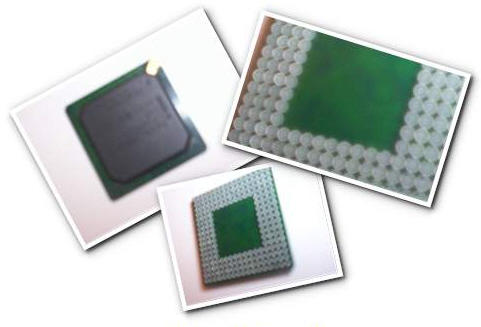
Here is a picture of a processor that I happened to have. It's an intel processor I believe. Click on it to expand. (for your information no computers were harmed to get this cpu) And by the way sorry for the wierd picturs I had digital camera problems while I tried to take them! For more pictures visit http://upload.wikimedia.org/wikipedia/en/f/f2/CPU_with_pins.jpg

Processors are also known as Microprocessors and CPU's. Visit how stuff works, wikipedia for more details.
CPU is the most well known microprocessor.
What a processor is and how a processor works:

A processor is like the brain of the computer that is a "complete computation engine".

The processor of the computer is made up of silicon on which transistors making up the microprocessor are carved or etched. A chip can contain countless transistors.
There are a lot things that make one type of processor diferent from another one.

Here are some the things that judge the quality of the processor.
Transistors- The first processors had about 6ooo transistors.

Processors now a days have about 125, 000, 000 transistors.

Microns- This is the size of the smallest wire in the chip. A human hair is about100 microns!!!!! The old ones had about 6 microns.Microns on a CPU today 0.09 microns!

Clock Speed- Old computers had about 2 Megahertz clock speed.

Computers have processors that clock up to 3.5 gigaherts.

Data width- This is the width of the ALU. The ALU stands for Arithmetic/ Logic unit. The unit that is responsible for the all the calculations.

MIPS- This stands for Millions of instuction per second. So this helps to tell us how fast the CPU is. Computers today can process about 7000 millions of instructions per second.

The microprocessor takes all the descisions. So it can also jump to a new set of instructions based on the descisions.

the things that a microprocessor has:
Adress Bus: this bus sends an address to the memory.
Data bus: Sends or recieves data form the memory.
RD (read) and WR(write) line: Tells memory whether it wants to set or get and addressed location.
Clock line: Lets a clock pulse sequence to to the processor.
Reset line: Resets the program counter to zero. This line can also restart the function
Instructions that change the program counter: Jumps
Program counter: It is a number that identifies the location of a sequence.
What are wire lines: Wire lines are lines of wires that are clustered together.
Cache: The amount of memory that is inbuilt with the processor. The bigger the cache the better the processor.

the processor is also connected to the RAM (randon access memory) and ROM(read only memory)

A microprocessor can perform a lot of instrustions. It microprocessor works on a set of instructions with the assembly language! Since it can perform so many instructions the chip tends to get heated us so computers have a fan to cool it off.
How does it perform those instructions you ask?
Well, what it does is it looks up the sequence of ones and zeroes in its memory through the program counter (see definitoin of program counter above) of course. Then when it identifies the sequence the CPU knows what to do next.The instruction or input we give would be pressing the a key. Then the code is sent to the cpu through the keyboard. The cpu looks it us and then sends a signal to the monitor to display the a!
That's a lot of processing.
The processor uses pins (sometimes) to connect to the mother board. This is how it completes the channel of processes. Like the processor above.

Thigs that a microprocessor takes care of and when the microprocessor goes to work.

Now that you know everything about the cpu or the processor of a computer. I have put together some facts that are interesting and will help you realize how good modern day computers are.
Speed- A computer today can do about a billion cycles per second if it has only one ghz of memory. Usually a computer has about 2 or so ghz 2,000,000,000 of cycles (sorry if I skip some zeros the number is just too big to remember) . AMD Athlons and P4's can go upto 3.06 Ghz!

All information on this post is taken from:
howstuffworks.com- How stuff works
en.wikipedia.org- Wikipedia the free encyclopedia with over 726, 000 articles.
The picture of the processor belongs to me!! (and incase you are wondering, no computers were harmed to get that chip)
Read More
Posted in | No comments

Basics of the computer

Posted on 17:14 by Unknown
Basically a computer is a device that allows us to put input and get the output. One of oldest example of the computer is an abacus. It is and was used to calculate math. It works with beads (more on the abacus later). Of course it doesn't work on electricity or anything but if you put input you can get the output.

Digital computers work on electricity (for now atleast). They to allow you to put input and get output. But these computers work on electricity so the only thing it can understand is on and off because electricity only has two states on and off.
A digital computer uses binary language/system. Which is on and off.
In the binary language on is represented by 1 and off by 0.
So on=1 off=0.
Combination of this one and zero makes a set of instructions.

When the computer processes anything the info has to go though a channel of processes in order to give us the output.

Now since the two basic things about computers are input and output. There are also devices that are known as input devices and output devices.
Input device- Put data into the computer
Examples of input devices
- Keyboard
- Mouse
- Trackball
- Digital camera
-Touch screen monitor (even though the monitor is considered out put device a touch screen isn't)

Output device display the data from the computer after being "processed"
Examples of output devices
- Monitor
- Printer
Etc.

There are two types of storage dynamic storage and long-term storage.
Dynamic storage is only there when you need it then it gets erased and long term storage stay there (there refers to the storage device) until you delete it.
Read More
Posted in | No comments

Wednesday, 14 September 2005

E-mail and how it works

Posted on 14:18 by Unknown
Okay this post is for the people who found my previous post a little boring. Brace yourself, because this is for the advanced people (kind of) And In this post I talk about the keyterms in e-mail and protocols and all that kind of stuff... it's useful knowledge to know.

Here are the notes I made on September 13th. My teacher finally got to complete his lesson today so I have added the rest of the stuff in this post!

First of all my teacher handed out my first project which is to find details of specific parts of a computer and do a presentation on it. The details that I found out are stored in this location of the beyond-teck website - .

Now to the notes, which I always put in point form (because it is easy to remember)

Things about e-mail

  • There are various folders in your e-mail account
    These folders are usually - Compose mail, Inbox, Starred (in g-mail), Sent mail, Drafts, All Mail, Spam, Deleted items, Contacts and the folder that you create.
  • Compose mail: This is the place where you go to e-mail someone.
  • Inbox: This is the place where all the incoming mail is stored.
  • Starred: This is the place where the e-mails that are important for you can be stored.
  • Sent Mail: This is where all the messages you have sent is stored.
  • Drafts: This is where the messages that are to be sent are stored. To store messages in draft there is usually a button such as Save Draft to do that.
  • All mail: This is where all mail messages are stored.
  • Spam: This is where unnecessary junk mail is stored. These mails are often related to some commercial purpose. The word Spam comes from a company called Hormel Foods which has a product named that right SPAM. It is a canned meat made largely from pork. For more information go to spam.com Sometimes this folder is also called junk mail.
  • Spam is like some of the comments on this page. It has links to various sites. Which makes it kind of like and advertisement.
  • Deleted Items: This is where all the deleted items are stored.
  • Contacts: This is where you put e-mail addresses of people so that you don't forget. You can add other information too in this section along with the e-mal address of that person.
  • Folders that you create: If you want a organized mailbox then my be you should have some of your own folders so that you can sort your mail. For example you can create a later folder in which you can put all the letters that you are going to read later.
  • Every account there is always a place where you can change the setting of how you get the e-mail etc.

There are two types of ways with which you can send and receive e-mail.

The first type is web based e-mail account. All the mail is stored in webservers. You read and write e-mail through the internet or webpages. This way you can read all your messages from any computer in any corner of the world.

The second type is e-mail clients also known as mail user agents (MUA). In e-mail client all the mail is downloaded onto your computer. The e-mail client is a software that uses protocols. A protocol (in computing of course) is a convention or standard that controls or enables the connection, communication and data transfer. The e-mail clients use POP3 and IMAP. Due to the fact that a server hosts a your e-mail service you can change the setting for your client to save a copy on the server. You can access this copy form anywhere if your mail service has a website in which you can log onto. The POP3 protocol is to download e-mail but the SMTP protocol is used to send e-mail.

Acronyms of the day:

POP3: Stands for Post Office Protocol 3. This is used to retrieve e-mail from a mail server.

IMAP:Internet Message Access Protocol. This too is used to retrieve e-mail from a mail server.

IMAP4: Internet Message Access Protocol4. This too is used to retrieve e-mail from a mail server.

MIME: Multipurpose Internet Mail Extensions. A specefication for formatting Non ACSII messages so that they can be transferred over the internet.

ACSII: American Standart Code for Information Interchange. This is a code uses numbers to represent normal characters (english characters). The numbers range from 0 to 127.

SMTP: Simple Mail Transfer Protocol. A protocol that is used to send e-mail messages between servers.

MUA: Mail user agents

UCE: unsolicited commercial e-mail

Some things that you need to know about e-mail:

Since e-mail doesn't have emotions because it is just text it can be dangerous and can cause serious misunderstandings.

Also there are many companies that are out there to take your e-mail address and spam you. See Spam explanation above for more details. Also there are some bots that search for e-mail address so that when they get your e-mail address they put your e-mial address in their database so that they can send you spam.

One of the ways to not have spam in your inbox is have many e-mail addresses. So when ever you sign up for newsletters and all that it goes to your e-mail address that is created for that purpose. So this ways your e-mail address with all the important mail is safe.

Read More
Posted in | No comments

Tuesday, 13 September 2005

E-mail

Posted on 18:21 by Unknown
E-mail has now become a big part of our lives and in order to understand how to use that better I've added this post. And yes it's also a part of my notes... you probably know all this stuff but here it is anyways.

The first text box in a web based e-mail client or an e-mail client is always is always the TO: box.
In this box we need to type in the e-mail address of the person to whom we are going to send the e-mail to.
Then comes the CC textbox or the Carbon Copy text box. This is where we type in the name of the people who you want to send copies of the letter to.
The name originates form the carbon used in typewriters. They put carbon sheet ni between two papers so that when the hammer hits the paper it also imprints the same thing on the other paper which is behing the carbon paper. This is called the Carbon Copy.
Then BCC or Blind Carbon Copy
If you want to send an e-mail to a person but do not want him to know who else got the same e-mail then their e-mail address goes here.

Here's some stuff that I dug up myself:

  • E-mail is short for electronic mail.
  • It is the transmission of text messages and files over a network (usually the internet!)

That's all I could find for now. Will be adding more later to this post.

Still anxiously waiting for my teacher to complete his lesson...

Source answers.com, my notes and web-opedia
Read More
Posted in | No comments

Friday, 9 September 2005

Computers and Computer Parts

Posted on 14:23 by Unknown


Here are some tips that are going to make you a better shopper! Well at least it is going to educate you more about computers. Along with that you are going to learn a few tips about computers and computer parts... well you know them all probably but anyways, it's my homework from business class for today :(


  • Always know that a businessperson's job is to sell!
  • No matter what he tells you his intention is to sell his product.

    In order to sell his products he is going to make sure that he hides all the bad stuff and only shows you the best his product has to offer.
  • Always research on web sites like Futureshop before you go ahead and purchase something.
  • Before going to the store do some research!

Things that I learnt about computers:

  • Processor Type: The brand of the processor like AMD or Intel. Intel is the most popular though. The processor is also called as the CPU or the central processing unit. It works with other devices to perform tasks
  • Processor Speed: The speed of the processor, or how fast it is. This is usually measured in Megahertz (MHz) or Gigahertz (GHz). The higher the speed the faster the performance is. 1 Ghz is 1000 Mhz
  • RAM: Random Access Memory. Computers short-term memory.
  • Hard drive: The bigger the hard drive size the more files we can store. Storage capacity is measured in, GB (gigabytes).
  • Optical Drives: Drives such as CD drives are known as optical drives because they use lasers to read and write data.
  • A CD-RW drive can read and write most common types of CD formats
  • A DVD-ROM drive can only read most common types of DVD's
  • A DVD-RW drive can read and write most common types of DVD's
  • Graphics Card: Also known as a video card, this card helps the computer to handle high resolution graphics
  • Available Expansion Bays: A place where you can install additional components such as optical drives or hard drives
  • Expansion Slots: Allows you to plug in other special cards such as video cards, sound cards and network cards.
  • Cache: The amount of memory available for short-term memory storage during processing. The bigger the cache the better the processing.
  • Disk Drive: A storage device that enables us to read and write from a floppy disk.
  • Fax/Modem: Tells us which type of internal modem the computer has. 56k modem is used for dial-up Internet.
  • I/O Ports (input output ports): These are ports that connect the computer to external components and transmit data between the computer and peripherals.
  • Included Software: The software/application that comes along with the computer. This software can be preinstalled or you have to install it on your own.
  • Monitor Included: Tells us if any monitor is included. If it isn't included then we need to buy our own monitor along with the computer.
  • System Bus: The system bus is a path that connects the computer to the processor. A higher system bus signifies faster processing of information.
  • Expansion Cards:
    Network Card: This card allows us to connect our computer to an Ethernet network.
    Sound Cars: Connects our PC to other peripherals.

Acronyms:

  • Modem: Short for modulator- demodulator, connect to internet
  • SDRAM: Synchronous Dynamic Random Access Memory
  • DDR SDRAM, DDR2 SDRAM: Double Data Rate (2) SDRAM
  • DIMM: Dual in-line memory module
  • SODIMM: Small Outline DIMM
  • L2 Cache: Level 2 Cache

Types or Monitors:

  • CRT: Cathode-Ray Tube. These types of monitors have been in existence for a long time. This uses a vacuum tube as a display screen. The phosphor coated viewing end of the tube emits light when struck be electrons.
  • Flat panel display: A thin display screen that uses different kinds of technologies. Some of the technology it uses are plasma, LCD, EL and FED.
  • LCD: Liquid Crystal Display
    Plasma Displays:
  • FED: Fluid Emission Displays
  • OLED’s: Organic Light emitting diodes display.
  • NED: Nano-emissive display.

Source: Answers.com, and my notes.


Read More
Posted in | No comments

Thursday, 8 September 2005

Who am I?

Posted on 07:30 by Unknown
I'm an IT enthusiast currently pursuing high school college in the uber beautiful city of Toronto, Canada. I'm addicted to computers and the Internet. I'm one of those people who really like experimenting with things. I'm particularly interested in the psychology of things. BeyondTeck is my online sandbox. Its the place where I store stuff I'd like to remember and build sandcastles (tutorials) that help other people out. I also do other stuff here like experiment with different layouts, content, writing styles, code, ideas and interaction methods. I hope someday these experiments will pay off and help me design/develop something that the world might actually like.
Read More
Posted in page | No comments

Tuesday, 6 September 2005

Enable live bookmarks

Posted on 10:16 by Unknown
To stay updated Mozilla Firefox has this excellent feature called "Live bookmarks". This is a feature that utilizes the RSS feed or Atom feed, however this is easier because you can visit the page right from your browser without any external site of software.

To add a Live Bookmark, just follow these steps and in no time you'll find that you have a lot of live bookmarks.

1. First click on the orange icon in the address barClick on the Orange RSS Feed icon


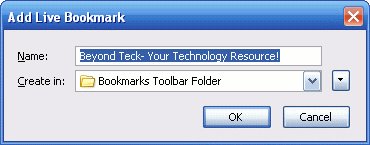
2. When you do that a screen will pop up like this one
Click on OK

Here you can specify the name of the bookmark and which folder to create it in.
After you are done just click on okay and you are done!

To access the Bookmarks go to the Bookmark toolbar. There you will see the Beyond Teck folder(or the folder you stored it in) in Bookmarks menu. Then hover over the option that says "Beyond-Teck!" and you can see my recent posts.

More blogs about technology.
Read More
Posted in | No comments
Newer Posts Older Posts Home
Subscribe to: Posts (Atom)

Popular Posts

  • WeTransfer Job Ad
    I like using WeTransfer to transfer things that don't fit in emails, mainly because the site is fast, has a large upload limit (2GB!) an...
  • Google Easter Egg: Change your language to Bork! Bork! Bork!
    Just recently I was watching a video of Marissa Meyer talking about how Google goes about optimizing their site to incease performance and u...
  • Contact Me!
    Okay so you want to contact me for something? No Problem! E-Mail You can send all your questions , comments , tips (I need a lot of those)...
  • Improving engine life and saving gas by putting your car on neutral at the lights
    You might have read my article about how my friend told me that putting your car on neutral while going downhill saves some gas and my tho...
  • Top 6 Gmail Tips
    Gmail is probably one of the best free webmail services out there given the enormous number of features it has. Plus, chances are good that ...
  • iPhone Searching... No Service/No Reception Problem
    Short answer: Turn of iMessages and try sending a text message to yourself to see if you get your network connection back. Explanation: Th...
  • Free up some more hard drive space on your Windows 8 installation
    I've been using Windows on my mac quite often recently, and although I had budgeted 65 GB of my precious SSD space to windows, it seems ...
  • How to dim your monitor brightness more than what your monitor allows
    So I recently got a new monitor (will post a review about it later) but I found that the LED monitor was a bit too bright for my eyes, espec...
  • Review of ActualMultipleMonitors from Actual Tools in Windows 8
    I was recently contacted by Actual Tools and they asked me to try out their newest version of Actual Multiple Monitors . It is a tool that p...
  • Choosing between Android, iPhone, Windows Phone and Blackberry
    One of the things that I tend to use most everyday is my smartphone. I almost always carry it with me everywhere I go, and also have it clos...

Categories

  • addons
  • adobe
  • ads
  • adsense
  • apple
  • audio
  • blackberry
  • blog
  • blogger
  • blogging
  • cars
  • cellphones
  • clean
  • code
  • comments
  • cricket
  • downloads
  • ebooks
  • email
  • error
  • file sharing
  • firefox
  • fixes
  • free
  • games
  • gas
  • Gmail
  • google
  • hack
  • hotmail
  • installs
  • instant messaging
  • internet
  • internet explorer
  • ipod
  • laptop
  • Linux
  • Live Writer
  • lol
  • Mac
  • mac. mail
  • mail
  • messenger
  • microsoft
  • Microsoft Word
  • money
  • msn
  • music
  • Musings
  • network
  • news
  • online
  • Outlook
  • page
  • peripherals
  • phones
  • photo
  • photoshop
  • php
  • plagiarism
  • problems
  • productivity
  • programming
  • projects
  • rant
  • Registry
  • Review
  • school
  • Screenshots
  • search
  • security
  • software
  • spam
  • speech
  • speed up windows
  • spyware
  • sysfader
  • technology
  • tip
  • tricks
  • tutorials
  • ubuntu
  • updates
  • video
  • virus
  • voip
  • web
  • wi-fi
  • Windows
  • Windows 7
  • Windows Vista
  • Windows XP
  • wireless
  • work
  • wtf
  • youtube

Blog Archive

  • ▼  2013 (5)
    • ▼  October (2)
      • WeTransfer Job Ad
      • iPhone Searching... No Service/No Reception Problem
    • ►  August (2)
    • ►  March (1)
  • ►  2012 (6)
    • ►  December (1)
    • ►  October (1)
    • ►  June (1)
    • ►  May (1)
    • ►  January (2)
  • ►  2011 (19)
    • ►  October (1)
    • ►  August (1)
    • ►  July (8)
    • ►  June (1)
    • ►  February (4)
    • ►  January (4)
  • ►  2010 (41)
    • ►  November (1)
    • ►  October (3)
    • ►  September (3)
    • ►  August (2)
    • ►  July (12)
    • ►  June (2)
    • ►  May (5)
    • ►  April (3)
    • ►  March (4)
    • ►  February (4)
    • ►  January (2)
  • ►  2009 (59)
    • ►  December (1)
    • ►  November (1)
    • ►  October (1)
    • ►  September (3)
    • ►  August (4)
    • ►  July (4)
    • ►  June (14)
    • ►  May (1)
    • ►  April (3)
    • ►  March (3)
    • ►  February (4)
    • ►  January (20)
  • ►  2008 (108)
    • ►  December (22)
    • ►  November (10)
    • ►  October (14)
    • ►  August (13)
    • ►  July (13)
    • ►  June (6)
    • ►  May (13)
    • ►  April (10)
    • ►  March (5)
    • ►  January (2)
  • ►  2007 (33)
    • ►  December (8)
    • ►  November (1)
    • ►  October (4)
    • ►  September (10)
    • ►  August (1)
    • ►  July (2)
    • ►  June (1)
    • ►  May (2)
    • ►  April (1)
    • ►  February (2)
    • ►  January (1)
  • ►  2006 (137)
    • ►  December (1)
    • ►  November (1)
    • ►  October (1)
    • ►  August (1)
    • ►  July (3)
    • ►  June (9)
    • ►  May (20)
    • ►  April (22)
    • ►  March (33)
    • ►  February (20)
    • ►  January (26)
  • ►  2005 (55)
    • ►  December (12)
    • ►  November (19)
    • ►  October (9)
    • ►  September (15)
  • ►  2001 (1)
    • ►  January (1)
Powered by Blogger.

About Me

Unknown
View my complete profile