See Beyond Tech

  • Subscribe to our RSS feed.
  • Twitter
  • StumbleUpon
  • Reddit
  • Facebook
  • Digg

Wednesday, 3 December 2008

Cool yet helpful tricks on Windows XP or Vista

Posted on 16:22 by Unknown

Yes, that’s right this article is going to be all about how to “show off your awesome uber cool windows skills”. Or in other words how to ‘look like a pro’ even if you aren’t one. And yes, I’ve compiled this list from actual videos of Microsoft employees (from Channel 9 if you’re interested) who seem to be every windows/microsoft/computer loving kid’s idols. Also, doing the following tricks might get you the nickname of ‘the smarta**” around your workplace/class, so user beware. Jokes aside, some of the tips below are actually somewhat helpful (especially using the command prompt tip) and can greatly improve your productivity on the computer.

The open using the ‘Run’ window trick

Well, when you think about it there are a bazillion ways of opening an application on windows. You can click on its icon in the desktop… click on the systray icon if (provided the application has a systray icon), you use the start menu, you can even use a program like Launchy/Enso that can open the application. But… have you ever used the run menu? Here, let me illustrate:

Once you confirm that you have admin access (which pretty much rules out any workplace/school or even home setting where you don’t have admin access) just press Windows key + R key. The run menu will pop-up. Then type in the name of the application that you want to open (as shown in the picture below) and press enter. Here’s a quick list of the applications you can type:

iexplore to open Internet Explorer

winword to open Word | powerpnt to open PowerPoint | excel to open Excel | outlook to open Outlook

firefox to open Firefox

you get the idea…

image

The close a windows by double clicking on its icon in the title bar trick

If you double click on the icon of an application in the taskbar, it closes the application or window. Try it. It even works on windows like an explorer, that doesn’t have a icon.

image

Maximize the browser window to full screen

This is a trick that pretty much every windows nerd MUST know. Just press F11 in a browser (be it IE or Firefox) and it’ll go full screen as shown in the screenshot below.

image

Use edit.com instead of Word or Notepad

If you really want to push the limits and show how really geeky you are, try showing off the cool ‘edit.com’ (no, its not a website, its a component that used to be in windows… and still is 30 years later) screen. Just press the Windows + R key and type in edit and press enter. The following screen should pop-up making your computer look like a prehistoric MS-DOS computer (minus the Microsoft bob of course).

image

Use the Command Prompt

Finally, nothing is as nerdy as using the command prompt to do something ‘cool’. Familiarize yourself with these command prompts and you’ll soon find your self as the top nerd of the jungle.

Read More
Posted in tip, Windows | No comments

Monday, 1 December 2008

Microsoft’s Phishing Filter?

Posted on 17:25 by Unknown

What is Microsoft’s Phishing filter, and why does it keep popping-up at the most random of times?

Well… the first question, I can answer. But for the second part – I have no idea.

image

As you can see from the screenshot above, the message is about Microsoft’s Phishing Filter. However I already set the settings for the phishing filter when I first started Internet Explorer, why is IE asking me the same question again? Does that mean that the phishing filter wasn’t on even when I told IE to turn it on the first time? Honestly, I don’t know.

However, after some “fishing” around, I have gathered this information:

As an aside, I have no clue what the screenshot below is all about, rather interesting don’t you think?

image

Anyway, What is the Phishing Filter?

Well, pretty much what phishing means is trying to ‘fish’ for information illegally. For example, if I create a website that is going to fraudulently make you give me your credit card number/password or other sensitive information, then that website is ‘phishing’ for your information. But the problem is, that these websites look so much like the real website, that its hard to figure out if its the real website or a phishing website. Plus, you might receive an e-mail from a person that you already know asking you to go to this website, making it look even more legitimate.

How can the Phishing Filter Help me?

What Phishing Filter does is lets you know when you are about to go a Phishing website, before you actually go to a website. It kind of acts like a shield, that protect you from identity thieves that want your information. Plus, all you need to do is allow it to check the website that you are visiting with a database, and the filter will do the rest. So its always a good thing to keep the filter on.

How do I Turn on the Phishing Filter?

Good question. Simply press Alt to reveal the menubar. Then go to Tools > Phishing Filter > Turn On Website Checking and viola.

image

What about unsafe websites, does the Phishing Filter help me from that?

As far as I’ve figured out, the phishing filter doesn’t really protect you from a really malicious website. Nor does any other kind of software out there. There are pieces of software that come close, like McAfee site advisor and Open DNS (read my article on Malicious Website here) that help you steer clear of bad sites on the internet, but none of these solutions are highly effective. Why? Because the internet is constantly changing, and if someone uploads a malicious site right this instant, chances are that Site Advisor or Open DNS don’t know about it yet. So the best way to protect yourself is always to exercise caution. A little common sense can help sometimes.

Would someone really ask you to type your credit card number so that they can ‘verify’ its really you and not delete your account. Nope. So sometimes, just knowing about certain things help. Nevertheless, using Site Advisor and Open DNS is a good idea – just incase.

Read More
Posted in | No comments

Protect yourself from Malicious Websites for free

Posted on 17:22 by Unknown

The internet is a place where you can find a plethora of information on topics that you never really knew existed. At the same time, its a place where you can talk to your friends across the globe and see pictures. But, what most people forget is – just like the real world, the internet can sometimes be really bad. It’s full of identity thieves and malware, that can catch you at anytime, and its also full  of malicious websites (not to mention inappropriate websites as well) that can always harm you or your family in some way or the other.

But fear now, there is light at the end of the tunnel. There are 2 great pieces of software out there that everyone can use for FREE to make sure that you never visit or come across such websites.

Option 1: OpenDNS

image OpenDNS is a great way to protect yourself (did I mention its also (kind of) a way to improve your internet connection speed) and maybe even your family from malicious and inappropriate websites with their webcontent filtering system. Instead blocking any kind of malicious website, it will give you the option of what you’d like to block. I must mention here that you will need some tech knowhow to configure your internet connection to use OpenDNS, but their helpful guide makes it easy for everyone to use it.

Option 2: Use McAfee Site Advisor

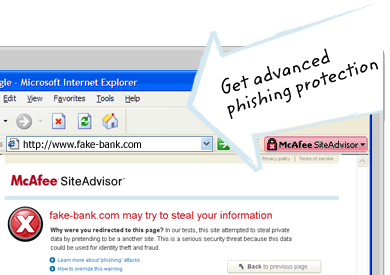
Site advisor is great for people who often search for things on search engines. Instead of accidently going to a bad/evil/phishing web page, Site Advisor will let you know beforehand so that you can ignore the option from the list of search queries. Even if you accidently stumble upon a website that might infect your computer it’ll still let you know.

Although there are 2 options, I recommend that it is best to use both of them in tandem, because unlike an anti-virus the more protection you have, the more you can prevent malware from infiltrating your computer. Also in the case of phishing attacks, I recommend common sense.

image

Read More
Posted in | No comments

5 steps make Windows XP faster in 2 mins FREE!

Posted on 15:59 by Unknown

image If  know you are going to be stuck with XP for a while (which is actually a good thing since vista isn't better anyway), then why not speed up Microsoft's uber slow Windows XP?

Here we go:

How to speed up windows XP in 2 minutes!

(Note: Well, technically, you'll be able to speed up your computer n 3 minutes once you read ALL the information on this page, and the information on the other pages this page links to - it is always important to read instructions,  especially when

they can harm your computer, and remember ABC - Always Backup Computers!)

Step 1

Implement the registry tweaks mentioned in the speed up XP post. It is filled with tweaks that are going to make your computer faster. Don't worry.. it's not a virus or a malicious file, unless you don’t read the instructions.

Step 2

Disable worthless fading effects and the regular flashy theme in Windows XP, see the Sysfader article (you might have to scroll down a little) on how to do it.

Step 3

Defrag, defrag, defrag, and use Disk Clean/Crap Cleaner to free up some space on your hard drive! Need I say more?

Step 4

Keep your computer up to date and make sure you download the latest service packs and other little security updates to ensure your computer is performing at its best. Often (but most certainly not always!), when you apply a new service pack and so on, it’ll improve the speed of your computer greatly.

Step 5

STAY AWAY from memory eating processor intensive Anti-Viruses! This means no Norton/Symantec or McAfee or even things like AVG that scan your computer regularly.

Using processor intensive anti-virus programs (that have heuristics enabled) can actually slow down your computer tremendously, and its best to stay away from these programs. If you already have these programs installed, find out how to disable their heuristics (or constantly checking files for viruses) feature. Of course, disabling this feature means that it’s much easier for you to download a virus and accidently run it, but it’ll make your computer MUCH faster. The only side effect is that you’ll have to scan every suspicious file manually before opening it. 

If you do all the steps mentioned above (remember it’ll only take you 2 minutes to do it, once you know what to do!) it’ll ensure a speedy windows computer and a happy life. Okay, may be not the happy life, but at least your computer will be much faster.

Read More
Posted in | No comments

Saturday, 29 November 2008

Use Windows Live Mail or Hotmail with Outlook 2007 or 2003

Posted on 22:47 by Unknown

Now, you don’t need to have a Hotmail Plus account to use your free Windows Live Mail or Hotmail (or even MSN) e-mail account with either Outlook 2003 or Outlook 2007. All you need to do is download and use Microsoft’s Outlook Connector to start taking advantage of your Hotmail account in Outlook.

Setting it up is pretty straight forward, and once you set it up, you’ll never have to log into your hotmail account again to see those annoying little ads and face the slow interface.

According to Microsoft, you can do the following with Outlook connector:

With Outlook Connector, you can use Outlook 2003 or Outlook 2007 to access and manage your Windows Live Hotmail or Office Live Mail accounts, including e-mail messages and contacts for free! Calendar, tasks and notes synchronization are not available on all services. If your service offers calendar synchronization, tasks and notes will synchronize as well. See the feature list for your service for details.
Outlook Connector enables you to use your Live Hotmail accounts within Outlook:

  • Read and send your Office Live Mail/Windows Live Hotmail e-mail messages.
  • Manage your Live Mail Contacts.
  • Use advanced options for blocking junk e-mail messages.
  • Manage multiple e-mail accounts in one place.
With a paid subscription, Outlook Connector enables these additional features:
  • Manage, share, and synchronize your calendar in Hotmail from Outlook.
  • Access your Tasks and Notes.

Not bad for a free e-mail account. However, there are a few things that I don’t like about this outlook connector thing. What it does essentially is pair up your hotmail and your other POP accounts together if you have more than one account (may be there is an option to turn this off… but I haven’t yet discovered this). So if you receive an e-mail in your POP account inbox, Outlook Connector will automatically upload a copy of the e-mail to your hotmail account. This of course is rather annoying for a person like me who likes to stay organized…

Speaking of staying organized, more on that coming soon. I feel as though I have way to many e-mail accounts and operating systems containing bits and pieces of my work here and there that I need to somehow come up with the ‘ULTIMATE’ solution to reduce the time I spend finding my stuff and sending a little e-mail.

Read More
Posted in downloads, free, tip, Windows | No comments

Free software to take better Windows Screenshots – Screenshot Captor

Posted on 22:37 by Unknown

Sure, print screen is alright, but sometimes you just need something more when you’re taking screenshots. This could be the cursor, delaying the time between the screenshot, an arrow pointing to a button or even a helpful note to accompany the screenshot. Obviously, the default Print Screen button in windows doesn’t support all this, nor does the Snipping Utility in Windows Vista. However, there is one piece of completely free software that does help you take great screenshots.

It’s called Screenshot Captor, and although you do have to register to get a licence key (that expires after a while, but you can get a new one for free), it is completely free. Technically, its donation ware, but it’s a great idea to pay the author for creating such a marvellous screenshot tool.

According to the makers of the tool, the software has the following capabilities:

  • Optimized for taking lots of screenshots with minimal intervention.
  • Smart auto naming of files, and ability to embed textual comments in files.
  • Good multi-monitor support.
  • Highly configurable to make it work the way you want it to; stays out of your way in the system tray.
  • Lots of capture modes: Multimon (multiple monitors), Desktop, Active Window, Region, Windows Object. Each mode has a hotkey for quick access.
  • Unique Cool Effects, including automatic active window enhancement (see pictures below).
  • Unsurpassed support for 3rd party user configurable tools, including file browsers and image editors; extend the program to do whatever you need by interfacing it with other programs.
  • Slimline sidebar file browser provides full shell operations.
  • Optional automatic image file versioning.
  • Seamless integration with Unicode Image Maker tool.
  • Automatically finds boundaries of non-rectangular/themed windows.
  • Auto scroll capture for windows too big for screen.
  • Deluxe thumbnail maker.
  • Quick Post Capture Popup Dialog.
  • Quick Screenshot Emailer Menu.

As you can see, you will soon start using this as a tool to take all the screenshots you need and also start annotating your pictures more. This tool combined with Windows Live Writer, which I like by the way, is great for any blogger who wants to write tutorials.

Read More
Posted in downloads, free, Windows | No comments

Google Search has another new feature - SearchWiki

Posted on 16:29 by Unknown
I just noticed today that Google has added a rather interesting feature that allows people to sort their search results as they like. Instead of just showing a static list of search results, users that are logged into Google can now interact with the results. Apparently, from what I can tell so far, the users can promote search results to a higher rank, delete search results from the list and even leave comments about search results.The little icons that appear beside the search results I guess are Google's way of using the people to improve their searches. For example, if you click on the chat icon, you can leave a comment that becomes public. I don't know if having public comments by all sorts of random people is a good thing or not, but it sounds cool anyway. 

Plus, getting rid of search results is a feature that I feel is going to be quite useful when people use the I'm feeling lucky button. Since the I'm feeling lucky button takes you to the top result, you can simply 'configure' the top search result to reflect the website you want to come first.

Read More
Posted in google | No comments
Newer Posts Older Posts Home
Subscribe to: Posts (Atom)

Popular Posts

  • WeTransfer Job Ad
    I like using WeTransfer to transfer things that don't fit in emails, mainly because the site is fast, has a large upload limit (2GB!) an...
  • Google Easter Egg: Change your language to Bork! Bork! Bork!
    Just recently I was watching a video of Marissa Meyer talking about how Google goes about optimizing their site to incease performance and u...
  • Contact Me!
    Okay so you want to contact me for something? No Problem! E-Mail You can send all your questions , comments , tips (I need a lot of those)...
  • Improving engine life and saving gas by putting your car on neutral at the lights
    You might have read my article about how my friend told me that putting your car on neutral while going downhill saves some gas and my tho...
  • Top 6 Gmail Tips
    Gmail is probably one of the best free webmail services out there given the enormous number of features it has. Plus, chances are good that ...
  • iPhone Searching... No Service/No Reception Problem
    Short answer: Turn of iMessages and try sending a text message to yourself to see if you get your network connection back. Explanation: Th...
  • Free up some more hard drive space on your Windows 8 installation
    I've been using Windows on my mac quite often recently, and although I had budgeted 65 GB of my precious SSD space to windows, it seems ...
  • How to dim your monitor brightness more than what your monitor allows
    So I recently got a new monitor (will post a review about it later) but I found that the LED monitor was a bit too bright for my eyes, espec...
  • Review of ActualMultipleMonitors from Actual Tools in Windows 8
    I was recently contacted by Actual Tools and they asked me to try out their newest version of Actual Multiple Monitors . It is a tool that p...
  • Choosing between Android, iPhone, Windows Phone and Blackberry
    One of the things that I tend to use most everyday is my smartphone. I almost always carry it with me everywhere I go, and also have it clos...

Categories

  • addons
  • adobe
  • ads
  • adsense
  • apple
  • audio
  • blackberry
  • blog
  • blogger
  • blogging
  • cars
  • cellphones
  • clean
  • code
  • comments
  • cricket
  • downloads
  • ebooks
  • email
  • error
  • file sharing
  • firefox
  • fixes
  • free
  • games
  • gas
  • Gmail
  • google
  • hack
  • hotmail
  • installs
  • instant messaging
  • internet
  • internet explorer
  • ipod
  • laptop
  • Linux
  • Live Writer
  • lol
  • Mac
  • mac. mail
  • mail
  • messenger
  • microsoft
  • Microsoft Word
  • money
  • msn
  • music
  • Musings
  • network
  • news
  • online
  • Outlook
  • page
  • peripherals
  • phones
  • photo
  • photoshop
  • php
  • plagiarism
  • problems
  • productivity
  • programming
  • projects
  • rant
  • Registry
  • Review
  • school
  • Screenshots
  • search
  • security
  • software
  • spam
  • speech
  • speed up windows
  • spyware
  • sysfader
  • technology
  • tip
  • tricks
  • tutorials
  • ubuntu
  • updates
  • video
  • virus
  • voip
  • web
  • wi-fi
  • Windows
  • Windows 7
  • Windows Vista
  • Windows XP
  • wireless
  • work
  • wtf
  • youtube

Blog Archive

  • ▼  2013 (5)
    • ▼  October (2)
      • WeTransfer Job Ad
      • iPhone Searching... No Service/No Reception Problem
    • ►  August (2)
    • ►  March (1)
  • ►  2012 (6)
    • ►  December (1)
    • ►  October (1)
    • ►  June (1)
    • ►  May (1)
    • ►  January (2)
  • ►  2011 (19)
    • ►  October (1)
    • ►  August (1)
    • ►  July (8)
    • ►  June (1)
    • ►  February (4)
    • ►  January (4)
  • ►  2010 (41)
    • ►  November (1)
    • ►  October (3)
    • ►  September (3)
    • ►  August (2)
    • ►  July (12)
    • ►  June (2)
    • ►  May (5)
    • ►  April (3)
    • ►  March (4)
    • ►  February (4)
    • ►  January (2)
  • ►  2009 (59)
    • ►  December (1)
    • ►  November (1)
    • ►  October (1)
    • ►  September (3)
    • ►  August (4)
    • ►  July (4)
    • ►  June (14)
    • ►  May (1)
    • ►  April (3)
    • ►  March (3)
    • ►  February (4)
    • ►  January (20)
  • ►  2008 (108)
    • ►  December (22)
    • ►  November (10)
    • ►  October (14)
    • ►  August (13)
    • ►  July (13)
    • ►  June (6)
    • ►  May (13)
    • ►  April (10)
    • ►  March (5)
    • ►  January (2)
  • ►  2007 (33)
    • ►  December (8)
    • ►  November (1)
    • ►  October (4)
    • ►  September (10)
    • ►  August (1)
    • ►  July (2)
    • ►  June (1)
    • ►  May (2)
    • ►  April (1)
    • ►  February (2)
    • ►  January (1)
  • ►  2006 (137)
    • ►  December (1)
    • ►  November (1)
    • ►  October (1)
    • ►  August (1)
    • ►  July (3)
    • ►  June (9)
    • ►  May (20)
    • ►  April (22)
    • ►  March (33)
    • ►  February (20)
    • ►  January (26)
  • ►  2005 (55)
    • ►  December (12)
    • ►  November (19)
    • ►  October (9)
    • ►  September (15)
  • ►  2001 (1)
    • ►  January (1)
Powered by Blogger.

About Me

Unknown
View my complete profile