See Beyond Tech

  • Subscribe to our RSS feed.
  • Twitter
  • StumbleUpon
  • Reddit
  • Facebook
  • Digg

Sunday, 14 December 2008

Use a free online virus scanner that won’t slow you down

Posted on 11:48 by Unknown

image A while ago, I wrote in my ‘5 steps to make Windows faster’ article that it’s better to stay away from anti-virus programs that constantly scan your computer just because its going to slow you down. Instead I recommended that you turn off the ‘heuristics scanning’ and only scan the files you think are a virus, so that your memory and CPU cycles won’t be taken up by the anti-viruses’ processes. But just now, it struck me, why use a virus scanner at all if you PC is always connected to the internet. Why not just us a online virus scanner, and not have any protection (with the exception of some ‘inbuilt’ tools like Windows Defender) at all. Using an online scanner will ensure that the database against which your file is being checked, is always going to be up to date, and plus it won’t slow down your computer, or even cause it (or other applications on your computer) to crash.

Now, before you start saying how important anti-virus applications are to keep your computer safe… I must say here that anti-virus is absolutely necessary, only if you don’t know what you are doing. If you DO know the way malicious pieces of software work, you probably won’t need any protection at all. So pretty much, if you were to rely on only an online scanner, you shouldn’t be visiting any ‘malicious’ websites (see phishing filter and protecting yourself from malicious websites for free post if you don’t know how to stop yourself from visiting these websites…), you most likely shouldn’t be visiting any bit torrent or private downloading website, and you mustn't open any ‘suspicious’ attachments or e-mails. But if you only use webmail, most web mail providers scan the attachment for your anyway.

Therefore, if you don’t do any of the things above, then you most likely don't NEED an anti-virus program at all, although it might always be a good idea to have it incase someone else using the computer doesn’t fit in the criteria listed above.

In my case, I’m the only one using my computer, so I don’t really have to worry too much about not having an anti-virus on my system. Plus, if I do receive any suspicious attachments and so on, I can always use the online antivirus. Anyway, using or not using anti-virus is completely up to you, but incase you do decide to sacrifice a little bit of security for a lot of speed (and stability) here are some good online antivirus scanners that I find work well (although there is no way in the world to ‘completely’ protect yourself from any malicious program that might be created this instant):

The list of free and recommended Online Virus Scanners

Kaspersky Online Virus Scan – There is a limit of 1MB for files that can be checked, but nevertheless, its fast and efficient. All you need to do is upload your file on their site, and they’ll check it for you. No ActiveX controls needed. The great thing I like about this is that it’s super fast because it’ll only check the files you upload to it – Not your whole system like the scanners below do.

BitDefender Online Scan – Free online scan. ActiveX controls needed. May take a while.

Symantec’s Scanner – Yes, I know. It’s Symantec. But its not necessarily a bad thing when the only thing you have to do is download a little ActiveX control.

ESET’s online scanner – A fast online scanner that does only what it’s supposed to. Again, ActiveX controls are necessary fot it to do its job.

Jotti’s Malware Scan – This is a scanner that claims to check your file against the databases of many anti-virus manufactures and has a 100MB file limit that you can upload to its database so that it can check your file. I wouldn’t recommend using this service, unless it is absolutely necessary (and the file you are checking doesn’t contain any personal information) just because is not a well renowned name in the security business.

Of course, there are others out there too, but I’ve never tested them out, so fell free to try out other options too and post about them in the comments.

Read More
Posted in free, internet, security, Windows | No comments

Sunday, 7 December 2008

Internet Explorer Crashes All the Time

Posted on 12:09 by Unknown

Recently, I noticed that whenever I used IE for browsing websites (just browsing… average websites without any extraneous java application or flash or any such thing), it just crashed all the time. I could have easily blamed IE for the crashes, but the thing that caused me to believe that it wasn’t IE’s problem was that this installation is only a couple of weeks old. Plus, when I used IE for a couple of times a while ago, it worked perfectly fine on the websites that tend to crash the browser right now.

The only thing that was different between the previous browser and the browser that I was using when it crashed was – add-ons. Naturally, add-ons that I was using (most of them from this post) were not developed by Microsoft, but by third party vendors. Unlike Firefox, I guess the add-ons actually make IE worse (because it crashed all the time) instead of making it better.

Anyway, How Did I fix the IE crashes?

Well, I could have disable all the addons but what I wanted to do first was to determine if IE crashed even without the addons. So I ran IE 7 without addons and saw what happened.

image

Naturally, the browser didn’t crash. So what I did next was I removed all inessential add-ons from the browser and tried using it again. And viola, no more crashes.

How did I remove the Addons?

Simple, first I recommend disabling the addons. To do that, open Internet Explorer. Then press the Alt key to reveal the menu bar. Then click Tools > Internet Options > Programs Tab > Manage Add Ons. Then Click on the addons that you most likely won’t use and just diable them for now. To disable an addon, click on its name, and in the options below click Disable. Like so:

image

Of course, you can only disable one addon at a time and check if that’s the add-on that is causing the problem But I’m too lazy to do that, so I just disabled all unimportant addons. Of course, after realizing that I rarely used most of the add-ons, I removed them completely through Control' Panel’s add or remove programs option.

That solved the crashing problem once in for all!

Is it a Vista Problem?

Interestingly enough, when I use all the add-ons on my Internet Explorer in Windows XP, it works perfectly fine. But for some reason, it crashes the browser in Vista. Perhaps, it’s vista’s fault then? I don’t know. But at least, IE doesn’t crash when I use it once in an blue moon.

Read More
Posted in | No comments

Boost Productivity by opening applications faster with Launchers

Posted on 11:31 by Unknown

 image We all know that the start menu can be used to open an application or start a process. Even fewer of us know about using the run menu to start a program. But do you know about applications like Launchy or Enso that can change your life? If you’re using Windows (especially if you’re still using XP), then one of the things that should be on your computer right now is launchy. If you’re using a mac then try quicksilver or just plain ol’ spotlight. You can take a look at this wikipedia article that mentions a whole lot of other similar programs that do the same thing.

But, I guess you’re wondering, why use a program like this at all? Isn’t it just easier to find the program in the start menu? Good question. Lets look at a couple of factors here that will help you pick launchy or other similar things over the start menu.

Find and open things faster

First off, the thing you have to do with the start menu, or even on the dock, is find your application. If its not one of the most used applications then it’s probably not even in your quick launch bar or your dock. So you’ll have to spend atleast 5 seconds of your precious time, searching for the application you want. Then, you’ll have to wait for another 10 seconds for the application to open.

But wait, you know what the application is called, right? Why not just type in the first few characters of the application and press enter, and let another application open the application for you? That’s exactly want Launchy does.

Let’s say you want to open Microsoft Word. Now, assuming that you know how to spell ‘word’, all you have to do is press Alt+Spacebar, and type in Word. Launchy will automatically detect that you want to open Microsoft word, and it’ll show the word icon. Then, you just press enter to open the application you want. This even works for bookmarks, or even documents if you tell launchy that you want to index ‘.doc’ and ‘.ppt’ files and so on.

Clearly, Launchy helps you open your document or application in 1 second instead of 5 seconds.

Remove the Middle Man (or extra unnecessary steps)

Say you want to search for ‘beyond teck’ (yes, that’s the name of this blog, by the way) on Google. What you would naturally do is, Open Firefox > Click in the Firefox Search Bar > Type in ‘beyond teck’ > Press Enter and only then you’ll be presented with a screen with all the list of search results.

Wouldn’t it just be easier for you to open launchy > type in your search query and get a list of search results in a browser?

image

Of course, searching through launchers does take a bit of practice (and a bit of manual reading), but its super simple, and super fast. So why use the browser method when launchy (or other such launching applications) is better?

Plug-ins and expandability

Many application launchers are not just limited to doing the tasks they were initially built to do. There are several plug-ins out there that add more functionality to the original application and make it better and much more useful.

For example, with the runny plugin for launchy, you can create your own batch files (more about that later) and run it through launchy. But that’s just one example, there are several other plugins out there for various other launchers.


Its rather clear here that using an application launcher is going to improve your productivity and save you a lot of hair pulling.

Read More
Posted in downloads, free, Mac, Windows | No comments

Wednesday, 3 December 2008

Cool yet helpful tricks on Windows XP or Vista

Posted on 16:22 by Unknown

Yes, that’s right this article is going to be all about how to “show off your awesome uber cool windows skills”. Or in other words how to ‘look like a pro’ even if you aren’t one. And yes, I’ve compiled this list from actual videos of Microsoft employees (from Channel 9 if you’re interested) who seem to be every windows/microsoft/computer loving kid’s idols. Also, doing the following tricks might get you the nickname of ‘the smarta**” around your workplace/class, so user beware. Jokes aside, some of the tips below are actually somewhat helpful (especially using the command prompt tip) and can greatly improve your productivity on the computer.

The open using the ‘Run’ window trick

Well, when you think about it there are a bazillion ways of opening an application on windows. You can click on its icon in the desktop… click on the systray icon if (provided the application has a systray icon), you use the start menu, you can even use a program like Launchy/Enso that can open the application. But… have you ever used the run menu? Here, let me illustrate:

Once you confirm that you have admin access (which pretty much rules out any workplace/school or even home setting where you don’t have admin access) just press Windows key + R key. The run menu will pop-up. Then type in the name of the application that you want to open (as shown in the picture below) and press enter. Here’s a quick list of the applications you can type:

iexplore to open Internet Explorer

winword to open Word | powerpnt to open PowerPoint | excel to open Excel | outlook to open Outlook

firefox to open Firefox

you get the idea…

image

The close a windows by double clicking on its icon in the title bar trick

If you double click on the icon of an application in the taskbar, it closes the application or window. Try it. It even works on windows like an explorer, that doesn’t have a icon.

image

Maximize the browser window to full screen

This is a trick that pretty much every windows nerd MUST know. Just press F11 in a browser (be it IE or Firefox) and it’ll go full screen as shown in the screenshot below.

image

Use edit.com instead of Word or Notepad

If you really want to push the limits and show how really geeky you are, try showing off the cool ‘edit.com’ (no, its not a website, its a component that used to be in windows… and still is 30 years later) screen. Just press the Windows + R key and type in edit and press enter. The following screen should pop-up making your computer look like a prehistoric MS-DOS computer (minus the Microsoft bob of course).

image

Use the Command Prompt

Finally, nothing is as nerdy as using the command prompt to do something ‘cool’. Familiarize yourself with these command prompts and you’ll soon find your self as the top nerd of the jungle.

Read More
Posted in tip, Windows | No comments

Monday, 1 December 2008

Microsoft’s Phishing Filter?

Posted on 17:25 by Unknown

What is Microsoft’s Phishing filter, and why does it keep popping-up at the most random of times?

Well… the first question, I can answer. But for the second part – I have no idea.

image

As you can see from the screenshot above, the message is about Microsoft’s Phishing Filter. However I already set the settings for the phishing filter when I first started Internet Explorer, why is IE asking me the same question again? Does that mean that the phishing filter wasn’t on even when I told IE to turn it on the first time? Honestly, I don’t know.

However, after some “fishing” around, I have gathered this information:

As an aside, I have no clue what the screenshot below is all about, rather interesting don’t you think?

image

Anyway, What is the Phishing Filter?

Well, pretty much what phishing means is trying to ‘fish’ for information illegally. For example, if I create a website that is going to fraudulently make you give me your credit card number/password or other sensitive information, then that website is ‘phishing’ for your information. But the problem is, that these websites look so much like the real website, that its hard to figure out if its the real website or a phishing website. Plus, you might receive an e-mail from a person that you already know asking you to go to this website, making it look even more legitimate.

How can the Phishing Filter Help me?

What Phishing Filter does is lets you know when you are about to go a Phishing website, before you actually go to a website. It kind of acts like a shield, that protect you from identity thieves that want your information. Plus, all you need to do is allow it to check the website that you are visiting with a database, and the filter will do the rest. So its always a good thing to keep the filter on.

How do I Turn on the Phishing Filter?

Good question. Simply press Alt to reveal the menubar. Then go to Tools > Phishing Filter > Turn On Website Checking and viola.

image

What about unsafe websites, does the Phishing Filter help me from that?

As far as I’ve figured out, the phishing filter doesn’t really protect you from a really malicious website. Nor does any other kind of software out there. There are pieces of software that come close, like McAfee site advisor and Open DNS (read my article on Malicious Website here) that help you steer clear of bad sites on the internet, but none of these solutions are highly effective. Why? Because the internet is constantly changing, and if someone uploads a malicious site right this instant, chances are that Site Advisor or Open DNS don’t know about it yet. So the best way to protect yourself is always to exercise caution. A little common sense can help sometimes.

Would someone really ask you to type your credit card number so that they can ‘verify’ its really you and not delete your account. Nope. So sometimes, just knowing about certain things help. Nevertheless, using Site Advisor and Open DNS is a good idea – just incase.

Read More
Posted in | No comments

Protect yourself from Malicious Websites for free

Posted on 17:22 by Unknown

The internet is a place where you can find a plethora of information on topics that you never really knew existed. At the same time, its a place where you can talk to your friends across the globe and see pictures. But, what most people forget is – just like the real world, the internet can sometimes be really bad. It’s full of identity thieves and malware, that can catch you at anytime, and its also full  of malicious websites (not to mention inappropriate websites as well) that can always harm you or your family in some way or the other.

But fear now, there is light at the end of the tunnel. There are 2 great pieces of software out there that everyone can use for FREE to make sure that you never visit or come across such websites.

Option 1: OpenDNS

image OpenDNS is a great way to protect yourself (did I mention its also (kind of) a way to improve your internet connection speed) and maybe even your family from malicious and inappropriate websites with their webcontent filtering system. Instead blocking any kind of malicious website, it will give you the option of what you’d like to block. I must mention here that you will need some tech knowhow to configure your internet connection to use OpenDNS, but their helpful guide makes it easy for everyone to use it.

Option 2: Use McAfee Site Advisor

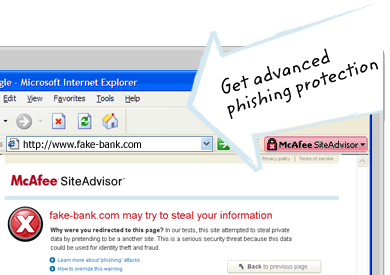
Site advisor is great for people who often search for things on search engines. Instead of accidently going to a bad/evil/phishing web page, Site Advisor will let you know beforehand so that you can ignore the option from the list of search queries. Even if you accidently stumble upon a website that might infect your computer it’ll still let you know.

Although there are 2 options, I recommend that it is best to use both of them in tandem, because unlike an anti-virus the more protection you have, the more you can prevent malware from infiltrating your computer. Also in the case of phishing attacks, I recommend common sense.

image

Read More
Posted in | No comments

5 steps make Windows XP faster in 2 mins FREE!

Posted on 15:59 by Unknown

image If  know you are going to be stuck with XP for a while (which is actually a good thing since vista isn't better anyway), then why not speed up Microsoft's uber slow Windows XP?

Here we go:

How to speed up windows XP in 2 minutes!

(Note: Well, technically, you'll be able to speed up your computer n 3 minutes once you read ALL the information on this page, and the information on the other pages this page links to - it is always important to read instructions,  especially when

they can harm your computer, and remember ABC - Always Backup Computers!)

Step 1

Implement the registry tweaks mentioned in the speed up XP post. It is filled with tweaks that are going to make your computer faster. Don't worry.. it's not a virus or a malicious file, unless you don’t read the instructions.

Step 2

Disable worthless fading effects and the regular flashy theme in Windows XP, see the Sysfader article (you might have to scroll down a little) on how to do it.

Step 3

Defrag, defrag, defrag, and use Disk Clean/Crap Cleaner to free up some space on your hard drive! Need I say more?

Step 4

Keep your computer up to date and make sure you download the latest service packs and other little security updates to ensure your computer is performing at its best. Often (but most certainly not always!), when you apply a new service pack and so on, it’ll improve the speed of your computer greatly.

Step 5

STAY AWAY from memory eating processor intensive Anti-Viruses! This means no Norton/Symantec or McAfee or even things like AVG that scan your computer regularly.

Using processor intensive anti-virus programs (that have heuristics enabled) can actually slow down your computer tremendously, and its best to stay away from these programs. If you already have these programs installed, find out how to disable their heuristics (or constantly checking files for viruses) feature. Of course, disabling this feature means that it’s much easier for you to download a virus and accidently run it, but it’ll make your computer MUCH faster. The only side effect is that you’ll have to scan every suspicious file manually before opening it. 

If you do all the steps mentioned above (remember it’ll only take you 2 minutes to do it, once you know what to do!) it’ll ensure a speedy windows computer and a happy life. Okay, may be not the happy life, but at least your computer will be much faster.

Read More
Posted in | No comments
Newer Posts Older Posts Home
Subscribe to: Posts (Atom)

Popular Posts

  • WeTransfer Job Ad
    I like using WeTransfer to transfer things that don't fit in emails, mainly because the site is fast, has a large upload limit (2GB!) an...
  • Contact Me!
    Okay so you want to contact me for something? No Problem! E-Mail You can send all your questions , comments , tips (I need a lot of those)...
  • Google Easter Egg: Change your language to Bork! Bork! Bork!
    Just recently I was watching a video of Marissa Meyer talking about how Google goes about optimizing their site to incease performance and u...
  • Improving engine life and saving gas by putting your car on neutral at the lights
    You might have read my article about how my friend told me that putting your car on neutral while going downhill saves some gas and my tho...
  • Top 6 Gmail Tips
    Gmail is probably one of the best free webmail services out there given the enormous number of features it has. Plus, chances are good that ...
  • iPhone Searching... No Service/No Reception Problem
    Short answer: Turn of iMessages and try sending a text message to yourself to see if you get your network connection back. Explanation: Th...
  • Free up some more hard drive space on your Windows 8 installation
    I've been using Windows on my mac quite often recently, and although I had budgeted 65 GB of my precious SSD space to windows, it seems ...
  • Review of ActualMultipleMonitors from Actual Tools in Windows 8
    I was recently contacted by Actual Tools and they asked me to try out their newest version of Actual Multiple Monitors . It is a tool that p...
  • How to dim your monitor brightness more than what your monitor allows
    So I recently got a new monitor (will post a review about it later) but I found that the LED monitor was a bit too bright for my eyes, espec...
  • Choosing between Android, iPhone, Windows Phone and Blackberry
    One of the things that I tend to use most everyday is my smartphone. I almost always carry it with me everywhere I go, and also have it clos...

Categories

  • addons
  • adobe
  • ads
  • adsense
  • apple
  • audio
  • blackberry
  • blog
  • blogger
  • blogging
  • cars
  • cellphones
  • clean
  • code
  • comments
  • cricket
  • downloads
  • ebooks
  • email
  • error
  • file sharing
  • firefox
  • fixes
  • free
  • games
  • gas
  • Gmail
  • google
  • hack
  • hotmail
  • installs
  • instant messaging
  • internet
  • internet explorer
  • ipod
  • laptop
  • Linux
  • Live Writer
  • lol
  • Mac
  • mac. mail
  • mail
  • messenger
  • microsoft
  • Microsoft Word
  • money
  • msn
  • music
  • Musings
  • network
  • news
  • online
  • Outlook
  • page
  • peripherals
  • phones
  • photo
  • photoshop
  • php
  • plagiarism
  • problems
  • productivity
  • programming
  • projects
  • rant
  • Registry
  • Review
  • school
  • Screenshots
  • search
  • security
  • software
  • spam
  • speech
  • speed up windows
  • spyware
  • sysfader
  • technology
  • tip
  • tricks
  • tutorials
  • ubuntu
  • updates
  • video
  • virus
  • voip
  • web
  • wi-fi
  • Windows
  • Windows 7
  • Windows Vista
  • Windows XP
  • wireless
  • work
  • wtf
  • youtube

Blog Archive

  • ▼  2013 (5)
    • ▼  October (2)
      • WeTransfer Job Ad
      • iPhone Searching... No Service/No Reception Problem
    • ►  August (2)
    • ►  March (1)
  • ►  2012 (6)
    • ►  December (1)
    • ►  October (1)
    • ►  June (1)
    • ►  May (1)
    • ►  January (2)
  • ►  2011 (19)
    • ►  October (1)
    • ►  August (1)
    • ►  July (8)
    • ►  June (1)
    • ►  February (4)
    • ►  January (4)
  • ►  2010 (41)
    • ►  November (1)
    • ►  October (3)
    • ►  September (3)
    • ►  August (2)
    • ►  July (12)
    • ►  June (2)
    • ►  May (5)
    • ►  April (3)
    • ►  March (4)
    • ►  February (4)
    • ►  January (2)
  • ►  2009 (59)
    • ►  December (1)
    • ►  November (1)
    • ►  October (1)
    • ►  September (3)
    • ►  August (4)
    • ►  July (4)
    • ►  June (14)
    • ►  May (1)
    • ►  April (3)
    • ►  March (3)
    • ►  February (4)
    • ►  January (20)
  • ►  2008 (108)
    • ►  December (22)
    • ►  November (10)
    • ►  October (14)
    • ►  August (13)
    • ►  July (13)
    • ►  June (6)
    • ►  May (13)
    • ►  April (10)
    • ►  March (5)
    • ►  January (2)
  • ►  2007 (33)
    • ►  December (8)
    • ►  November (1)
    • ►  October (4)
    • ►  September (10)
    • ►  August (1)
    • ►  July (2)
    • ►  June (1)
    • ►  May (2)
    • ►  April (1)
    • ►  February (2)
    • ►  January (1)
  • ►  2006 (137)
    • ►  December (1)
    • ►  November (1)
    • ►  October (1)
    • ►  August (1)
    • ►  July (3)
    • ►  June (9)
    • ►  May (20)
    • ►  April (22)
    • ►  March (33)
    • ►  February (20)
    • ►  January (26)
  • ►  2005 (55)
    • ►  December (12)
    • ►  November (19)
    • ►  October (9)
    • ►  September (15)
  • ►  2001 (1)
    • ►  January (1)
Powered by Blogger.

About Me

Unknown
View my complete profile