See Beyond Tech

  • Subscribe to our RSS feed.
  • Twitter
  • StumbleUpon
  • Reddit
  • Facebook
  • Digg

Sunday, 11 July 2010

Switching to the DVORAK Layout

Posted on 17:51 by Unknown
For me the main method I use to interface with the computer is typing (for now at least). I use the keyboard almost every time I'm at a computer, save for the few occasions where I only need to check something quickly, and even then I most likely need to login by using the keyboard first.

However, for years, unknowingly, I (and possibly you too) have been using a keyboard layout that is more than a hundred years old! The QWERTY keyboard layout, as many of you probably already know was first created for the typewriter, when the typewriter was primarily a mechanical machine that depended on gravity and springs to do its job. It was designed mainly to slow you down (which makes sense since there are no vowels in the home row -- almost every word in the English language has a vowel), to ensure that the keys don't jam (even though I'm sure that they sometimes did). Have you ever wondered if there is a better way of typing?

Turns out there is: its called the dvorak typing layout, and it helps you type really really fast. Just ask this lady (actually, you can't anymore, but her world record typing speed speaks for itself).

The best way to get started with this new layout first, and see if you are sold. You can do so by checking out the dvorakzine and perhaps read about it on the interwebs. Then you should try out the layout for yourself. But even at a basic intuitive level, having the vowels nearby just makes sense.

If you want to get started, I'd recommend you first start with some typing practice (a basic course in dvorak is probably your best bet), and learn the layout a little by little. Almost every operating system lets you change your layout quickly, so QWERTY will never be too far away.

But before you switch, here are some things you should know:

  • It'll naturally feel awkward typing on a qwerty layout once you get completely used to the dvorak one. If you are at a workplace where your system administrator will not allow you to switch layouts, you might just have to stick to qwerty for you entire life
  • It's better to switch when you are still a student (and work mainly on your personal computer where you have full control over your keyboard layout)
  • You'll never want to type on qwerty anymore
  • No one else will be able to use your computer (until they figure out how to switch the layout back to qwerty that is)
  • Your typing speed may improve tremendously, or if you were really fast on qwerty, it'll probably become as fast as qwerty
  • The dvorak layout only works for English, it doesn't really help that much in other languages, but if you are reading this, you likely speak english anyway
  • You'll have to spend quite a lot of time learning the layout, but it is well worth the effort if you ask me
  • Warning: You will have to relearn all your qwerty shortcuts, but if you're on a mac, you can use the Dvorak/Qwerty layout where whenever you press command (to enter a shortcut), the layout will be switched back to Qwerty, but this wont work in some applications like Aquamacs/Emacs and shortcuts involving the Control/Meta/Alt key
  • You'll have to relearn the location of punctuation marks and symbols like [] or /?+=-_ etc.
  • For me the total transition time was a few weeks, and when I first started, my typing speed was about 10~20 WPM (simple words per minute without any complex punctuations), yuck! But now its back to about 60~70 words per minute, although my qwerty speed was 90~100 WPM. However I'm sure that I'll be at ~100 very soon with only a couple of months of practice.
And that's about it. But I assure you that you will be better off with a layout that is faster and less stressful on your fingers.

If you have any other tips or questions on my experience with switching, please feel free to use the comments section.


Note: Yes this post was typed out in its entirety using the dvorak layout, and I bet you couldn't even tell the difference ;) I must say, that I don't think I've ever typed up a post this fast. The flow of thoughts from the brain to the keyboard was almost seamless. Although I must say, I did use the backspace button a few more times than usual because of a few spelling mistakes, but then again -- I'm still learning too.
Read More
Posted in tip | No comments

Thursday, 1 July 2010

Windows XP Mode in Windows 7

Posted on 16:33 by Unknown
If you have an application that only runs in Windows XP and you’re planning on getting Windows 7 (professional edition or greater) here is how you can emulate Windows XP on Windows 7. 

What is Windows XP Mode?

Windows XP Mode is essentially a Windows XP Virtual Machine. A virtual machine that only works for Windows XP. It runs the Windows XP operating system as though it were an application on Windows 7, but give has special “permissions” so that it can access (although not directly in the strictest sense) the hardware (CD/DVD Drive, USB drive etc. but no the actual hard drive) on you computer.
Usually when installing a virtual machine, you first need to create a virtual hard drive on your computer (which is just a file that is reserved for the virtual machine to use as a hard drive) and run the painfully long installation process (validation and all) to run an operating system. But with WXP Mode you can essentially just download the hard drive file where everything is nice and ready for you to use.

How to get Windows XP Mode

First, click the start button (the blue orb on the bottom left of the screen) and search for Windows XP Mode.

image
You will them be prompted to Download Windows XP Mode.
image
Click Download to be taken to Microsoft’s Website. Here, you’ll have to choose the options according to what you desire. If you happen to be using a browser other than Internet Explorer as your default browser, copy and paste the download in IE, as the download page may not play nice with other browsers since it requires “Windows Validation”.
However once you download and install all three components on the download page, you’ll be able to access your Windows XP installation directly from the start menu item.
Once you open Windows XP mode, you will be able to install the applications/games that only run on Windows XP and enjoy the other features that Windows 7 offers as well.
Read More
Posted in downloads, tip, Windows 7 | No comments

The New Windows Live Messenger App

Posted on 16:00 by Unknown

The Good

The new Windows Live Messenger application from Microsoft integrates online social networking with instant messaging. With a sleek Metro like interface the messenger application allows you to share what you’re doing right now (sort of like twitter) with your friends who are also using windows live, and stay up to date with your Facebook and Myspace profiles at the same time. To use Facebook or Myspace all you need to do is give it your credentials while you sign in for the first time.

IntroFacebook

The “Social” window allows you to sort recent “highlights” and other things just photos posted by our friends on Windows Live (MSN) or on Facebook. At the same time you can also add regular Windows Live friends like you could in older versions.

window

Also, the messaging service provides a way to set privacy while you sign in for the first time. You can also have custom privacy settings for every new person that you add to your friends list. It’s nice to see that Microsoft is paying close attention to the Facebook privacy debates.

Privacy

While things are still in Beta, I think that Microsoft has done a good job of trying to acknowledge the fact that Windows Live is not the only social networking service out there.

Other Thoughts

As usual I’m pretty sure that all of the Windows Live apps are for Windows only, not a good thing if you use a Mac. Of course, Apple software is also Mac only, but it would be nice to see some platform independent apps for once so that more people will actually use the Windows Live service.

Twitter support would also be a cool thing. Anything you type in the status message window could be automatically posted to your twitter profile, which would make things even easier. While I don’t personally use twitter since I don’t really have the self discipline to update anything, combining status messages with twitter may be a cool idea.

Overall I think Microsoft is on the right track with their “Windows Live Messenger” app that integrates other services with Messenger , although I would be much happier with a “Live” suite that I could use on any operating system of my choice.

Read More
Posted in microsoft, Review, Windows | No comments

Top 7 new Tricks / Features (with Tips) in Windows 7

Posted on 14:54 by Unknown
Windows 7 has some great tricks up its “sleeve” that all can take advantage of. Although, you’ll Windows 7 Home Premium or greater (or “higher”) to take advantage of these tricks. Here are the top 7 features that I like in ascending order of awesomeness:

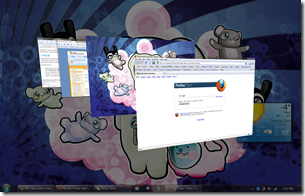
7. Flip-3d

image While this feature was also there in Windows Vista, I think that Microsoft has certainly made Windows 7 less of a resource hog so that I can actually use this feature once in a while. Instead Of Alt key +Tab key (like I used to in Vista and XP), I often press the Windows Key + Tab key now.
Some Flip-3d Tips:
  • Usually Flip-3d cycles from first window to the window behind it. If you want it to cycle the other way press: Windows key + Shift Key + Tab key
  • You don’t always need to cycle through the windows to select the windows you want. After pressing Windows + Tab, you can simply click on the window that you’d like to see on top. This works great when you have a laptop, because you can click with one hand and press the key combo with the other

6. Windows Snap

image I’m sure you all know about this feature. Simply drag a window to the edge of the screen and it snaps into place. Great if you want to have two windows side by side or if you want to maximize of minimize a window. It’s also great when you have dual monitors, and want to maximize the window (currently on monitor 1) to monitor 2 in “one fell swoop”.

5. Jump Lists

Some Tips:
  • You can also left click on an icon in the task bar and the jump list will pop-up
  • Clicking on the thumb-tack will ensure that the particular item (File/bookmark/etc…) will stay in the jumplist.

4. Improved Start Menu

With the new and improved Windows search features, you should be able to find whatever you need without a hitch. Simply click on the start menu and start typing. Sorry Launchy, but I find the start menu to be a bit more convenient.

3. Improved Touch Features/Hand writing Recognition

If you happen to have a tablet or tablet pc the Tablet PC input panel should provide countless hours of fun. To start it simply search for Tablet PC Input Panel in the start menu and off you go! Have fun!

2. Aero Shake

While transparent Windows are cool, clutter is not. Often I happen to have 40 different windows open while I only really need one, such as my browser window for example. So to quickly hide all those windows what you can do is simply shake the window that you want on the screen (sort of like the way you would drag a window, but without actually dragging it and just “wiggling” it quickly) and watch the other windows dissapear.
You’ll need the Aero theme enabled if you want to be able to do this. Here’s a video of how the Aero Shake feature works.
Although I confess that this feature is cool, I don’t usually use it that often because I don’t really find the need to do so. Or it may be that I am just lazy.

1. Awesome Speech Recognition

By far the greatest feature of Windows 7 has to be its improved (although very little) speech recognition capabilites. Learn more about this in my other article that talks about how you can set up speech recognition on Windows 7.


If you want to learn more out about other features in Windows 7, Microsoft’s website may be a good place to start.
Read More
Posted in tip, Windows 7 | No comments

Monday, 28 June 2010

File sharing, collaboration and sending big e-mail attachments?

Posted on 03:13 by Unknown
Often, it seems to be the case that the sharing and sending files with others, not to mention colloborating with others on a large project, is often difficult. And due to the fact that most e-mail providers have a limit on their attachment, it's even more hard to send large attachments through e-mail. For example, the attachment size limit for Gmail and Yahoo is only 20 MB. If you have 11 pictures of 2 MB each, you're going to have to send another email just for one photo.

Well, if you're ever confronted with a similar problem, there are actually several things you can do. In this article I'll mention only a few of the free services that I've used or know a little bit about.

Dropbox: By far one of the coolest things on the internet right now. The main purpose of dropbox is to allow you to save your files (up to 2 GB of total space, size of individual files don't matter) on the internet so that you can access them wherever you want to. But, since it allows you to save files in the internet, you can use if for back up purposes as well. Finally since it allows you to "share" files and folders with others (with the whole world or with a select group of friends that you can invite) you can also share files that would otherwise make for some very large attachments. Definitely the first thing you should check out.

Windows Live SkyDrive: This free service from Microsoft allows you to store files on their servers so that you can share it with others. It provides 25 GB of space, specifically for this purpose but upload size for each file is limited to 50 MB. Certainly worth checking out, especially for photos, since it also provides a great gallery feature and integrates nicely with other Windows services such an Windows Live Photogallery.

Yousendit: Like some of the other free webhosting services, yousendit allows you to upload your file, and sends that link to your friend so that they can download it via yousendit. While yousendit only stores the file for some days, it might be worth it since no actual sign up is necessary.

Office Live Workspace: While not strictly a file sharing service, office live workspace works great for sharing documents with others, and allows up to 5 GB of storage space. While it does requrie you to have an office live addin for some features, it is great for colloboration. It allows you to allow multiple users to edit a document, add comments and has features like todo lists and so on.
Read More
Posted in email, file sharing, internet, tip | No comments

Sunday, 27 June 2010

Locking Your Mac Instead of Logging Out

Posted on 19:57 by Unknown
Unfortunately, it isn't possible to lock your Mac as easily as one can lock their Windows computer (by pressing the Windows Key + L key) by default. It takes a little bit of setting up, but once you set it up, you can lock your computer with a flick of the mouse (really).


The way to lock your computer on a Mac is a rather long winded one in theory. What you need to do is put your display to sleep, and then through the security section of the system preferences window, set your Mac to ask you for a password by after the screen saver begins.

To do so, it'll be convenient to create an active corner for a putting your display to sleep first. Follow this tutorial if you need help on how to do so, and set the option for "Put display to sleep" to a particular corner of your choice. Then open system preferences again, and click on Security. Check the box that says "Require a password ______ after sleep or screen saver begins". For the time option, I usually use five seconds, in case I accidentally trigger the active screen corner, putting my display to sleep and locking my computer.


And you're done. When you need to lock your computer, just move your mouse to the screen corner that you set and walk away from your computer (only for a short time I hope) knowing that it is safe from prying eyes. Plus, you are saving energy, as insignificant as it may seem, and helping the environment.
Read More
Posted in Mac, tip | No comments

Sunday, 23 May 2010

Sending Scheduled Emails through Apple Mail

Posted on 00:03 by Unknown
One nice feature missing in most email providers' web interfaces is the ability to schedule your email and send it at a later time. Unfortunately, Gmail doesn't even have a labs feature yet that will allow you to automatically send a scheduled email at a later date.

Of course, you can use your favourite calendar system to send the email, but what if you aren't actually going to be at your computer? It makes much more sense to allow your computer to send the email for you automatically.

To do so, you'll often need the help of an external utility or script on your computer to do the job for you. Apple Mail is great candidate for sending out automatic scheduled emails on a Mac. But Mail.app can't do this alone, it needs the help of some scripts, namely the Schedule Delivery script available in Mail Scripts, and iCal.

How to set up automatic delivery of email with Mail Scripts

First, get the Mail Scripts download for your version of Mail (at the time of writing, the latest version available was 2.10.2) from Andreas Amann's website. After you download it, double click on the .dmg file and let the installer install the necessary scripts.

Then open up AppleScript Editor (found in Applications > Utilities > AppleScript Editor.app) and click on Preferences in the menubar. Then in the General tab, check the box beside "Show script menu in menubar" to see a partially opened scroll icon on the menubar.

You'll have to use the Scroll to access the scripts.

Now, open up Apple mail, and write up a draft of the message you'd like to send (or may be you have a draft of the message already). Click on the scripts icon, and under "Mail Scripts" select Schedule Delivery. Fill in the desired time and date for the delivery of the mail and choose the draft that you'd like to send. And click Update.

You're set! At the right time, mail scripts will do its job (provided your computer is turned on) and save the day.

Of course, a couple of caveats: this method depends on your computer being turned on. A power outage/dead battery/accidental file corruptions/bad wifi connection/bad internet connection would mean that the message will not be sent, so choose the messages you'd like to schedule wisely.
Read More
Posted in apple, tip | No comments
Newer Posts Older Posts Home
Subscribe to: Posts (Atom)

Popular Posts

  • WeTransfer Job Ad
    I like using WeTransfer to transfer things that don't fit in emails, mainly because the site is fast, has a large upload limit (2GB!) an...
  • Google Easter Egg: Change your language to Bork! Bork! Bork!
    Just recently I was watching a video of Marissa Meyer talking about how Google goes about optimizing their site to incease performance and u...
  • Contact Me!
    Okay so you want to contact me for something? No Problem! E-Mail You can send all your questions , comments , tips (I need a lot of those)...
  • Improving engine life and saving gas by putting your car on neutral at the lights
    You might have read my article about how my friend told me that putting your car on neutral while going downhill saves some gas and my tho...
  • Top 6 Gmail Tips
    Gmail is probably one of the best free webmail services out there given the enormous number of features it has. Plus, chances are good that ...
  • iPhone Searching... No Service/No Reception Problem
    Short answer: Turn of iMessages and try sending a text message to yourself to see if you get your network connection back. Explanation: Th...
  • Free up some more hard drive space on your Windows 8 installation
    I've been using Windows on my mac quite often recently, and although I had budgeted 65 GB of my precious SSD space to windows, it seems ...
  • How to dim your monitor brightness more than what your monitor allows
    So I recently got a new monitor (will post a review about it later) but I found that the LED monitor was a bit too bright for my eyes, espec...
  • Review of ActualMultipleMonitors from Actual Tools in Windows 8
    I was recently contacted by Actual Tools and they asked me to try out their newest version of Actual Multiple Monitors . It is a tool that p...
  • Choosing between Android, iPhone, Windows Phone and Blackberry
    One of the things that I tend to use most everyday is my smartphone. I almost always carry it with me everywhere I go, and also have it clos...

Categories

  • addons
  • adobe
  • ads
  • adsense
  • apple
  • audio
  • blackberry
  • blog
  • blogger
  • blogging
  • cars
  • cellphones
  • clean
  • code
  • comments
  • cricket
  • downloads
  • ebooks
  • email
  • error
  • file sharing
  • firefox
  • fixes
  • free
  • games
  • gas
  • Gmail
  • google
  • hack
  • hotmail
  • installs
  • instant messaging
  • internet
  • internet explorer
  • ipod
  • laptop
  • Linux
  • Live Writer
  • lol
  • Mac
  • mac. mail
  • mail
  • messenger
  • microsoft
  • Microsoft Word
  • money
  • msn
  • music
  • Musings
  • network
  • news
  • online
  • Outlook
  • page
  • peripherals
  • phones
  • photo
  • photoshop
  • php
  • plagiarism
  • problems
  • productivity
  • programming
  • projects
  • rant
  • Registry
  • Review
  • school
  • Screenshots
  • search
  • security
  • software
  • spam
  • speech
  • speed up windows
  • spyware
  • sysfader
  • technology
  • tip
  • tricks
  • tutorials
  • ubuntu
  • updates
  • video
  • virus
  • voip
  • web
  • wi-fi
  • Windows
  • Windows 7
  • Windows Vista
  • Windows XP
  • wireless
  • work
  • wtf
  • youtube

Blog Archive

  • ▼  2013 (5)
    • ▼  October (2)
      • WeTransfer Job Ad
      • iPhone Searching... No Service/No Reception Problem
    • ►  August (2)
    • ►  March (1)
  • ►  2012 (6)
    • ►  December (1)
    • ►  October (1)
    • ►  June (1)
    • ►  May (1)
    • ►  January (2)
  • ►  2011 (19)
    • ►  October (1)
    • ►  August (1)
    • ►  July (8)
    • ►  June (1)
    • ►  February (4)
    • ►  January (4)
  • ►  2010 (41)
    • ►  November (1)
    • ►  October (3)
    • ►  September (3)
    • ►  August (2)
    • ►  July (12)
    • ►  June (2)
    • ►  May (5)
    • ►  April (3)
    • ►  March (4)
    • ►  February (4)
    • ►  January (2)
  • ►  2009 (59)
    • ►  December (1)
    • ►  November (1)
    • ►  October (1)
    • ►  September (3)
    • ►  August (4)
    • ►  July (4)
    • ►  June (14)
    • ►  May (1)
    • ►  April (3)
    • ►  March (3)
    • ►  February (4)
    • ►  January (20)
  • ►  2008 (108)
    • ►  December (22)
    • ►  November (10)
    • ►  October (14)
    • ►  August (13)
    • ►  July (13)
    • ►  June (6)
    • ►  May (13)
    • ►  April (10)
    • ►  March (5)
    • ►  January (2)
  • ►  2007 (33)
    • ►  December (8)
    • ►  November (1)
    • ►  October (4)
    • ►  September (10)
    • ►  August (1)
    • ►  July (2)
    • ►  June (1)
    • ►  May (2)
    • ►  April (1)
    • ►  February (2)
    • ►  January (1)
  • ►  2006 (137)
    • ►  December (1)
    • ►  November (1)
    • ►  October (1)
    • ►  August (1)
    • ►  July (3)
    • ►  June (9)
    • ►  May (20)
    • ►  April (22)
    • ►  March (33)
    • ►  February (20)
    • ►  January (26)
  • ►  2005 (55)
    • ►  December (12)
    • ►  November (19)
    • ►  October (9)
    • ►  September (15)
  • ►  2001 (1)
    • ►  January (1)
Powered by Blogger.

About Me

Unknown
View my complete profile